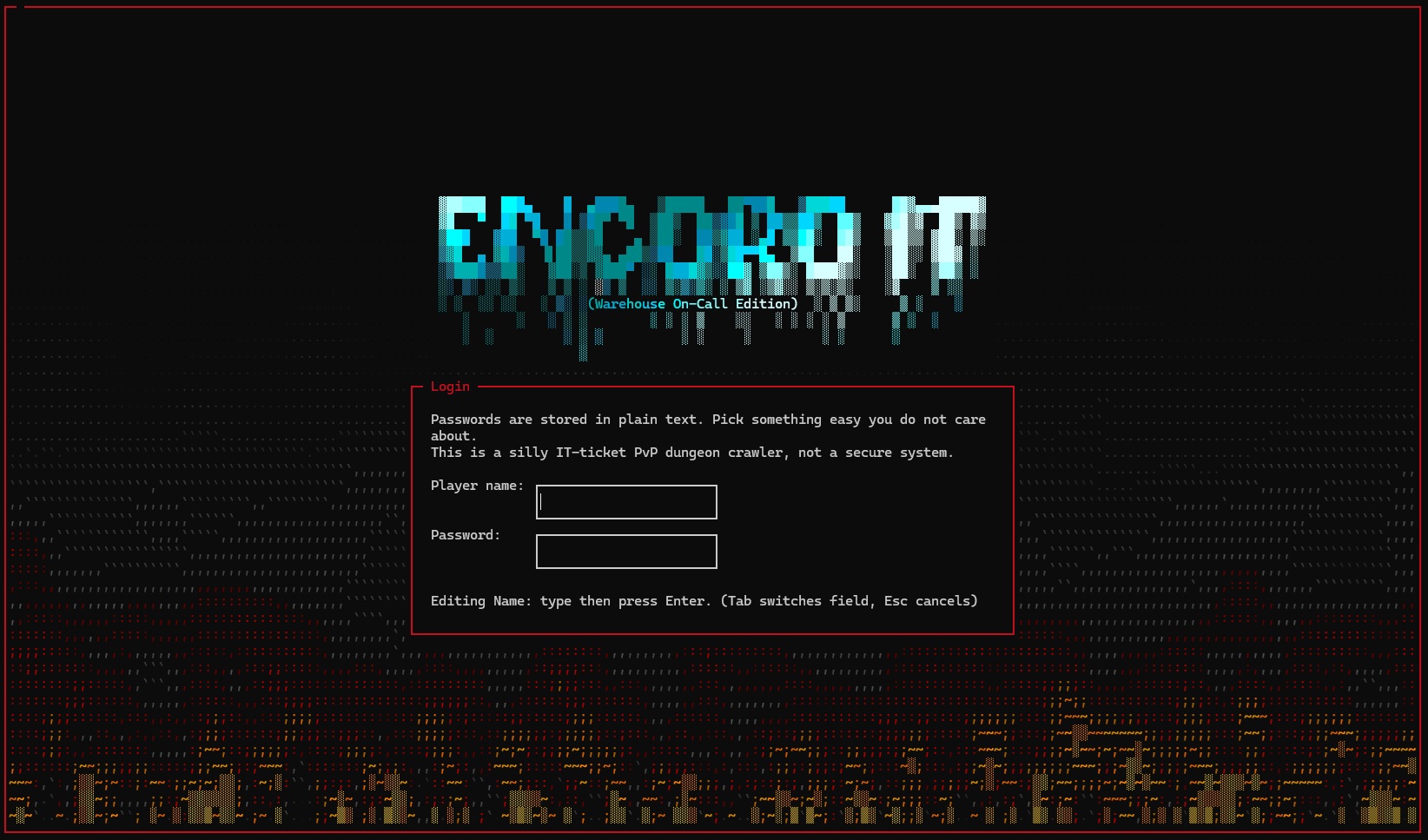
01 Web Client — Recommended
No downloads, no setup. Click the button below to jump straight into Encoro IT from your browser. Same server, same world as terminal players. The web client is now our primary development focus — see the Web Client page for details.
Chrome or Firefox recommended. No account needed — just pick a name.
What You Get
The browser client delivers the full Encoro IT experience with enhanced visuals only possible on a canvas renderer:
- Full game — warehouse, tunnels, bosses, tickets, loot
- Smooth movement — sub-tile interpolation with wall collision
- Mouse aiming — left/right click for gadgets, free aim
- Inventory & shop — table layouts, filters, C-key detail view
- Ticket system — accept quests, track progress, earn rewards
- Chat & party — in-browser chat, party system, multiplayer
- 3D walls — perspective-projected walls with depth shading
- Particle VFX — real fire, lightning, frost, plasma, acid
- Ray-traced lighting — dynamic light bounce with biome colours
- Death cinematic — 3s fade to black, "YOU DIED", fade back in
- Boss telegraphs — glowing crack lines and warning symbols
- Adaptive FPS — particle LOD scales to maintain performance
VFX Showcase
The web client takes advantage of canvas rendering to deliver visual effects impossible in a terminal:
Particle-based flames with heat gradients, ember trails, and smoke wisps. Flamethrower cone spread rendered with hundreds of particles.
Recursive midpoint-displacement arcs with branching, glowing core, and outer halo effects for Arc Welder and EMP blasts.
Blue-to-white frost fill with ice crystal particles. Diamond-shaped shards that shimmer and fade.
Dark vortex centers with swirling purple rings and inward-pulling particle streams.
Glowing projectile trails, splash effects, and corroding particle clouds with additive blending.
Cone telegraphs with ground cracks, AOE indicators, screen shake on impact, and ability-specific particle effects.
02 Terminal Client — Supported
Encoro IT still fully supports the terminal experience over Telnet or SSH. The classic terminal client connects to the same server as the web client — your progress is shared between both.
| Host | encoro.thundercon.net |
| Telnet Port | 23 recommended |
| SSH Port | 22 (supported) |
| SSH user | encoro |
| Password | crawler |
Windows — Enable built-in Telnet
Windows 10 and 11 ship with a Telnet client but it's disabled by default. Enable it one of two ways:
- Open Settings → Apps
- Click Optional features
- Click Add a feature
- Search for Telnet Client → Install
- Restart your terminal window
- Open Control Panel
- Programs → Turn Windows features on or off
- Tick Telnet Client → OK
- Restart your terminal window
Then open Command Prompt, PowerShell, or Windows Terminal and run:
cmd.exe window works but has limited colour support. Windows Terminal (free from the Microsoft Store) gives full 256-colour rendering.
Mac / Linux — Telnet
Most Linux distros include telnet. Open a terminal:
If telnet isn't installed: macOS — brew install telnet · Ubuntu/Debian — sudo apt install telnet
PuTTY — Easiest Windows option
PuTTY is a free, standalone terminal emulator for Windows. It supports Telnet natively and is a single .exe — no installer, no Windows features to enable.
Go to the official PuTTY download page — under "Alternative binary files", download putty.exe (64-bit x86):
encoro.thundercon.net23SSH — Supported
If you prefer SSH:
Type yes if asked about the host fingerprint. Password: crawler
Key Repeat Tuning — Critical for Movement Feel
Terminal games rely on your OS key-repeat settings for held-direction movement. The OS default is far too slow. Adjusting these settings is the single biggest improvement you can make to how the game feels.
- Press Win+R, type
control keyboard, press Enter - Set Repeat delay slider to Short
- Set Repeat rate slider to Fast
- Click OK
- Open System Settings → Keyboard
- Set Key Repeat Rate to fastest
- Set Delay Until Repeat to shortest
For even lower delay: defaults write -g InitialKeyRepeat -int 10
200 = initial delay ms · 40 = repeat interval ms. Add to ~/.xinitrc to persist.